Windows beta installation guide
This is an early testing release. It has no verified Windows publisher signature. Expect bugs; start with a small project and keep Full Access off while learning the controls. Automatic installation of beta updates is not supported.
1. Download and check the file
Use the Windows Beta download on this website or the linked sajancodes/zaya-companion-releases GitHub release. The file is ZayaBetaSetup.exe. Compare its SHA-256 with the release before opening it:
Get-FileHash -Algorithm SHA256 "$HOME\Downloads\ZayaBetaSetup.exe"
A matching checksum checks the file against the published download; it does not replace a publisher signature or a malware scan. If the checksum differs, stop and download again from the official release.
2. Understand Windows warnings
“Unknown publisher” or “Windows protected your PC” can appear because this beta is unsigned and has no established reputation. If Windows offers “More info”, it shows the file and publisher details. Decide whether to continue only after checking the official source and checksum.
If Windows reports a named threat, blocks the file with Smart App Control, or your workplace policy prevents installation, stop. Do not turn off antivirus, Smart App Control, or other protections. Report the exact message without sending keys, private conversations, or personal files. Some devices cannot run this unsigned beta.
Microsoft: how Smart App Control handles unsigned apps
3. Install and launch
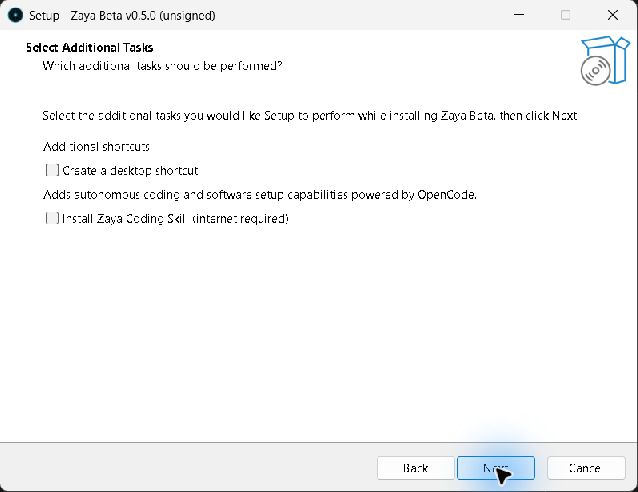
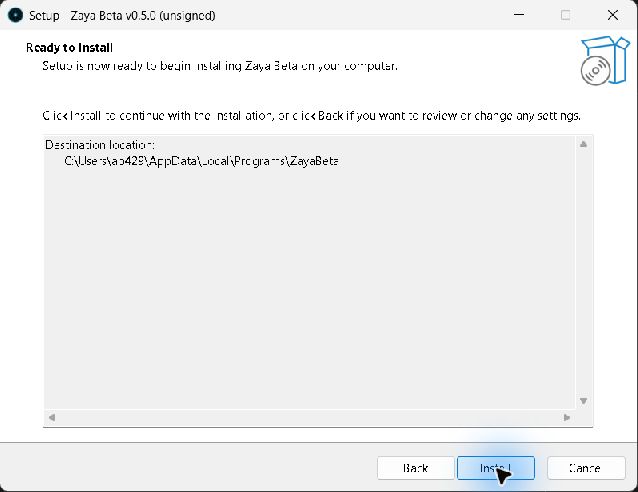
The screenshots below show the actual beta installer. Choose a folder, keep Coding Skill unchecked unless you want optional OpenCode installation, and review the summary. The default folder is %LOCALAPPDATA%\Programs\ZayaBeta. No administrator access is required for the base app.
4. Configure your provider and microphone
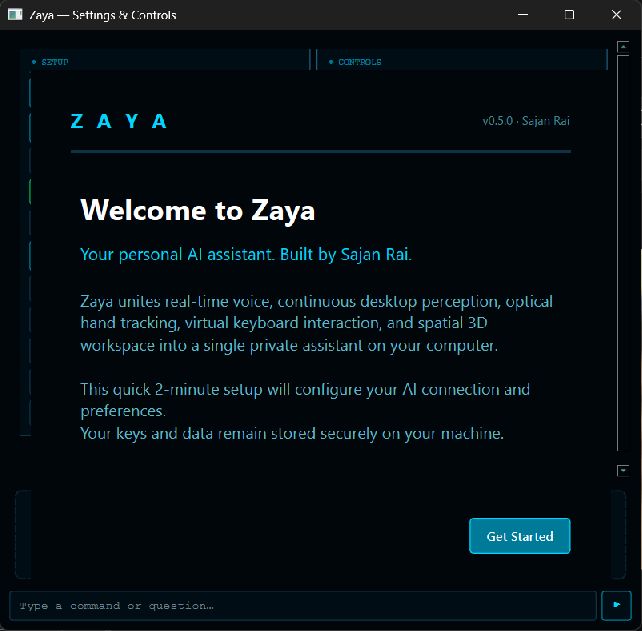
Open Zaya from the Start menu. Use your own provider credentials in the first-run setup. Provider access, quotas and possible charges are separate from the Zaya download. Keep API keys private. A microphone and network connection are required for cloud voice features; camera and phone pairing are optional.
If something does not work
- No voice: select the correct microphone/speaker, check Windows microphone permission yourself, and test your provider connection and quota.
- No window: check the system tray and avoid starting multiple copies. Restart Zaya once. If it still fails, report the startup error and beta version.
- Camera or phone unavailable: enable only the feature you need, check device permissions and pairing, and confirm the phone can reach the laptop. The desktop must be available for companion features.
- Missing DLL or startup exception: report the exact error. Do not download replacement DLLs from third-party sites.
- Updating: download the next beta manually from the official release, close Zaya, and run its installer. Back up your local data first. The signed automatic updater will not install unsigned betas.
- Uninstalling: use Windows Installed apps. Choose No when asked whether to remove local Zaya data if you want to keep your configuration and history.
Report reproducible problems to ab4290025@gmail.com with your Windows version, Zaya beta version, steps and a redacted screenshot. This is a limited beta, not a fully verified stable release.
Zaya is optimized for Windows 10/11 64-bit desktop environments.
Directory Architecture
The unsigned beta uses ZayaBetaSetup.exe. Its application files are separate from the planned stable installation. Personal configuration may be shared with existing Zaya installations; back it up before testing upgrades.
The default application folder is %LOCALAPPDATA%\Programs\ZayaBeta. Use Zaya's local settings and diagnostic views to inspect your configuration and logs. Data locations can differ between source and packaged builds. Never publish unredacted logs, provider keys, databases or paired-device credentials.
Silent / Automated Command Line Install
For enterprise or scripted setup:
# Run silent installation
.\ZayaBetaSetup.exe /VERYSILENT /SUPPRESSMSGBOXES /NORESTART

# Verify installation status
Test-Path "$env:LOCALAPPDATA\Programs\ZayaBeta\Zaya.exe"